Back to Asset Essentials Main Menu
Managing Assets in the Mobile App
You can easily search for, view, scan, and map your assets right from the Asset Essentials mobile app.
-
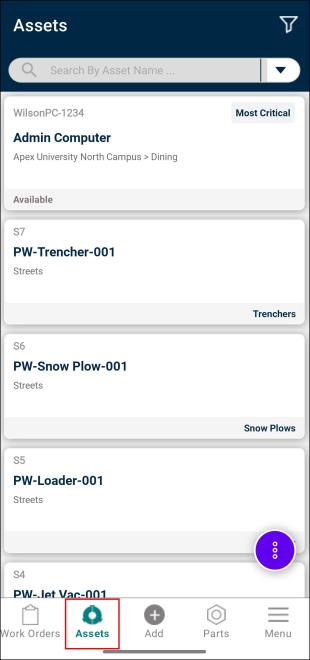
Tap the Assets icon at the bottom of the screen.
-
This will show you a list of all the assets in your Asset Essentials account.
-
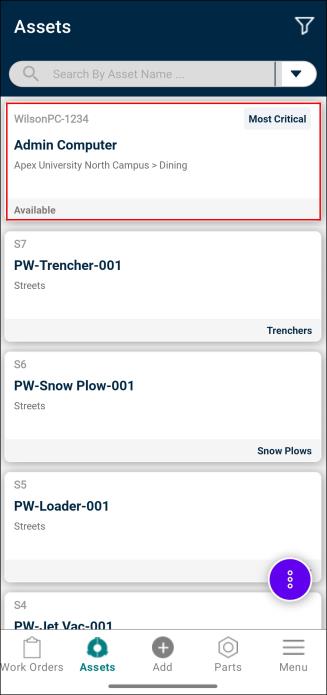
Tap on a required asset to access additional information.
-
You can search for an asset by tapping on the search icon (
 ) and searching by Name, Asset #, Serial #, or Barcode.
 -
Tap the filter icon (
 ) to apply filters. You can filter the asset list by Site, Category, Location, Asset Status, and Asset Condition. You can also change the sorting options from this menu.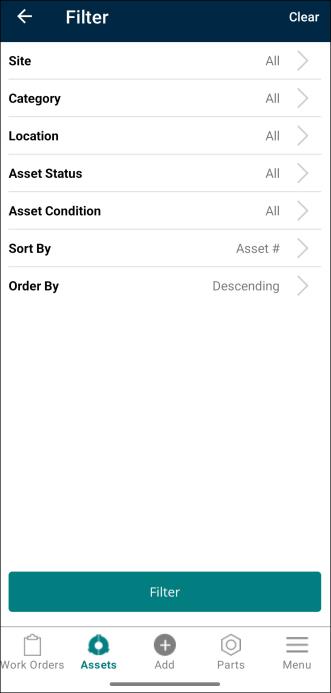
-
Tap the three-dot menu (
 ) to scan an asset's QR code or barcode, go to top of list, and reload asset data.
 -
Click (
 ) to close the menu and return to the normal list view.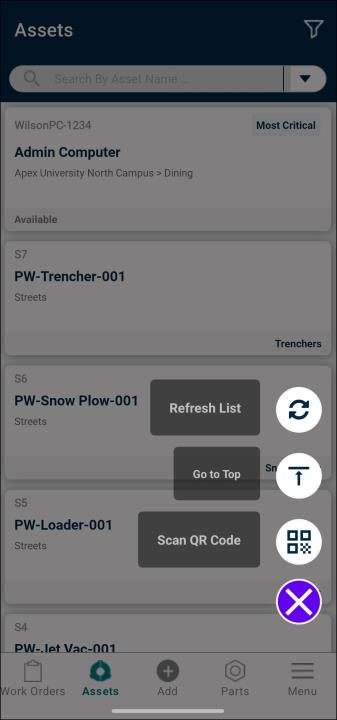
Asset Details
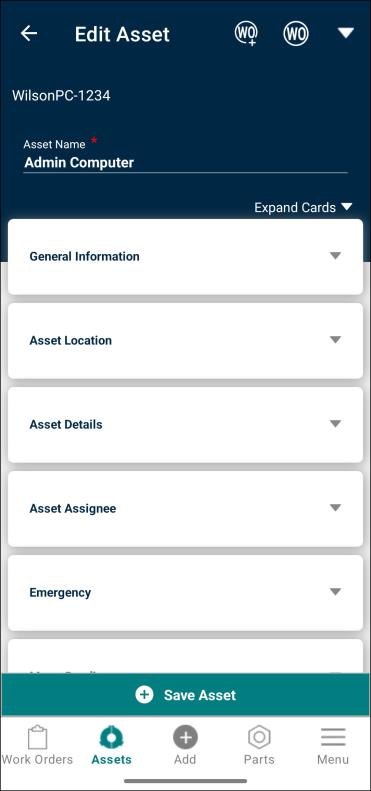
- General Information: Lists general information about the asset, such as the Site, Description, Category, Criticality, Asset Status, Asset Note, and Cost Center.
-
Asset Location: Indicates the physical location of the asset.
-
Asset Details: Lists details about the asset's condition including downtime.
-
Asset Assignee: Shows who is responsible for the asset.
-
Emergency: Contains emergency contact details and emergency note.
-
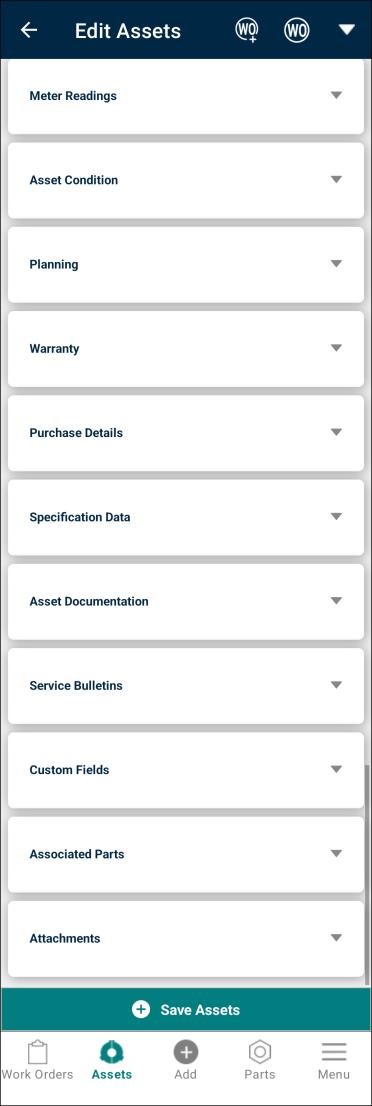
Meter Readings: Records usage or consumption data of the asset.
-
Asset Condition: Reflects the current health or state of the asset.
-
Planning: Contains scheduled maintenance or inspection plans.
-
Warranty: Lists warranty information including the title, expiration date, and vendor.
-
Purchase Details: Stores procurement information of the asset.
-
Specification Data: Contains technical specifications of the asset.
NOTE This card only shows up for accounts who have purchased Dynamic Data.
-
Asset Documents: Displays any documents that are attached to the asset from your Asset Essentials web account.
NOTE This card only shows up for accounts who have purchased Dynamic Data.
-
Service Bulletins: Lists official notices or updates from the manufacturer.
NOTE This card only shows up for accounts who have purchased Dynamic Data.
-
Custom Fields: Any custom fields configured on the asset template to appear for an asset is displayed in this card.
-
Associated Parts: Lists all the parts associated to the asset. You will also see all sites, locations, and part storage locations where each part is stored along with the current quantity available.
NOTE This section will only show if you have associated parts tied to this asset in your Asset Essentials web account.
-
Attachments: Stores images either by taking a photo from phone camera or adding a photo from phone gallery.